
Connecting Collavate MCP in Claude
A guide to connecting Collavate MCP in Claude
Add Collavate MCP to Claude as a custom connector and you’re connected right away. Once connected, you can find and review the approval documents and Decision history stored in Collavate simply by asking Claude in plain language.
For example, if you type “Summarize the purchase request documents approved last week,” Claude finds those documents in Collavate and summarizes them for you. Without opening each document, you can see at a glance what decision was made, when, and who it went through.
Before you start
Your domain must have completed the Collavate MCP sign-up. Collavate MCP is currently offered as a beta to customer domains that have applied.
If you use Claude with a company account, adding custom connectors may be restricted by your organization’s settings. If you don’t see the menu shown below, ask your company’s Claude administrator to check.
Step 1: Open the custom connector menu
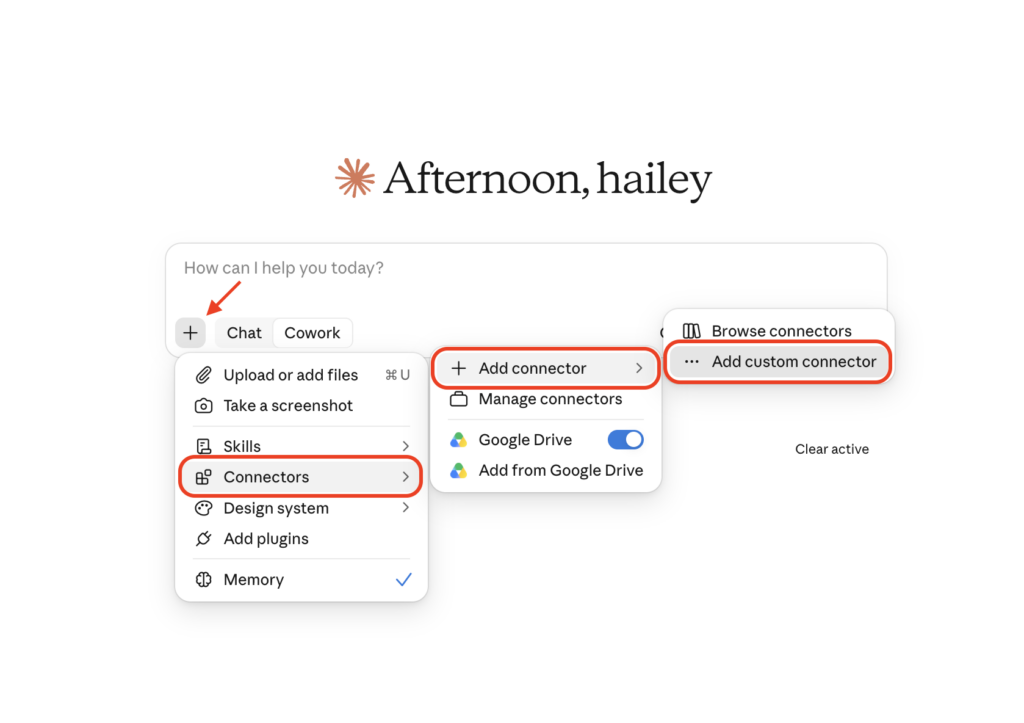
Click the + button at the bottom left of the Claude prompt box, then select Connectors → Add connector → Add custom connector.
Step 2: Enter the name and server URL
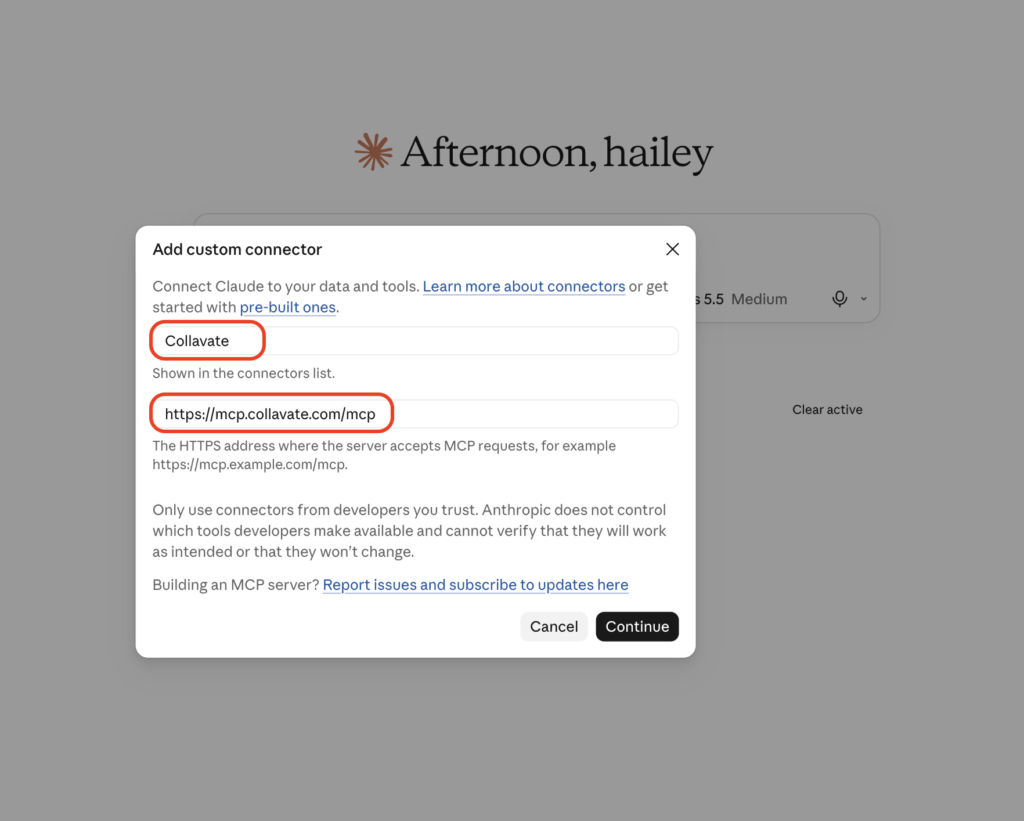
In the first field, enter Collavate as the name that will appear in your connector list. In the second field, enter the server URL below, then click Continue.
Step 3: Check the authentication settings and add
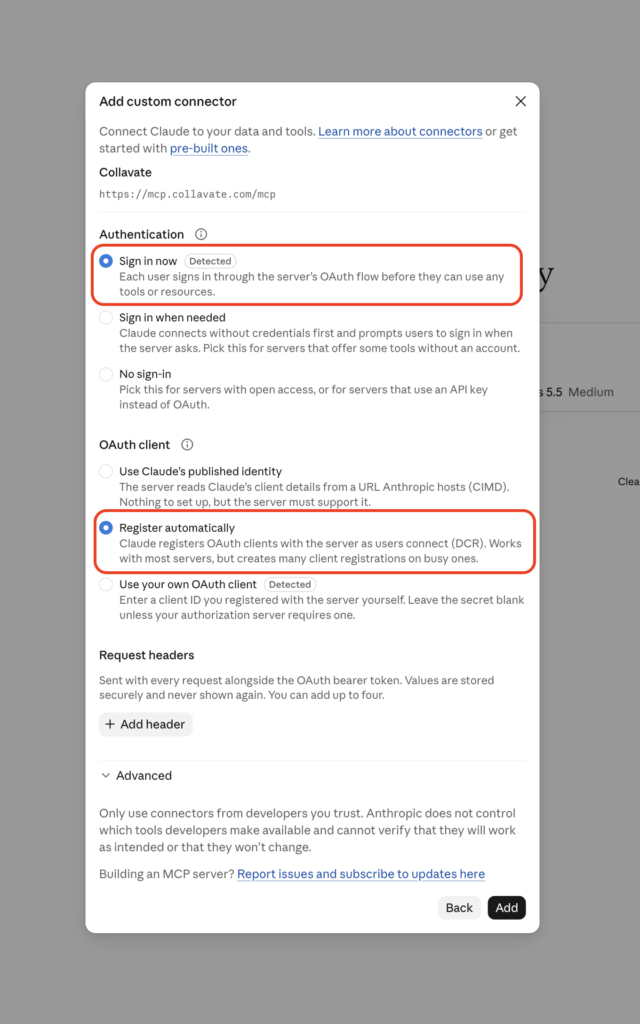
Make sure Authentication is set to “Log in now” and OAuth client is set to “Register automatically,” then click Add. You can leave Request headers empty. When the sign-in window opens, sign in with the company Google account you normally use for Collavate and follow the prompts to grant permissions.
Step 4: Confirm the connection
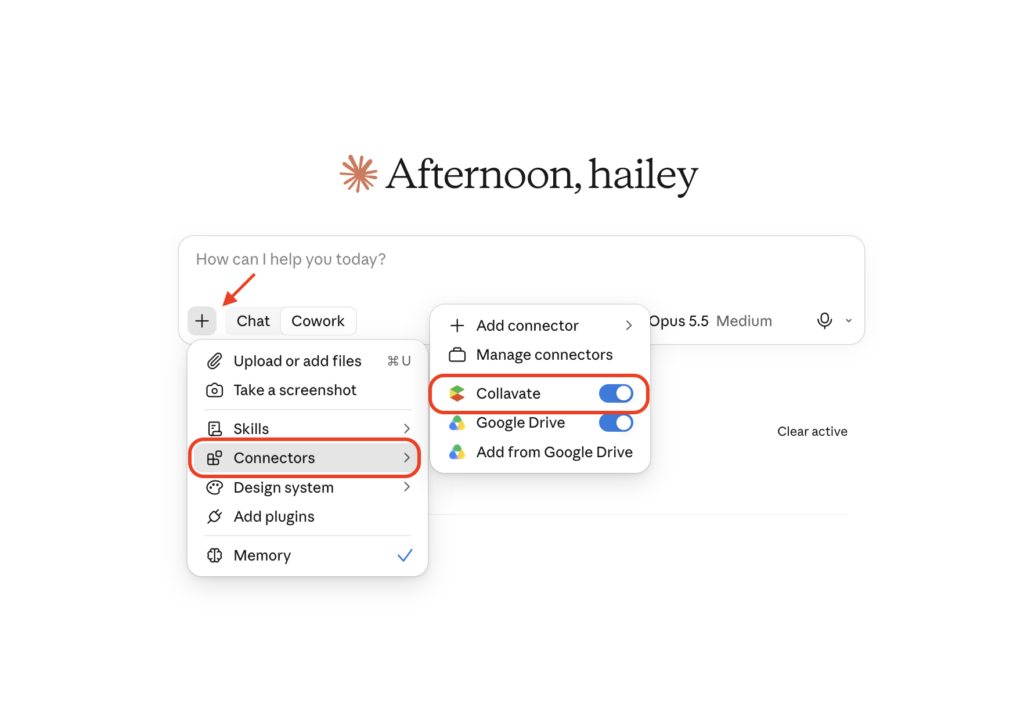
Click the + button and open the Connectors menu again, and Collavate will appear in the list. If its toggle is on (blue), the connection is complete. You only need to do this once.
Try asking
Once connected, just type your question in the prompt box the way you would normally say it. If this is your first time, start with the examples below.
- “Show me a list of the documents I approved this month”
- “Summarize the purchase request documents approved last week”
- “Check whether any contract-related documents are still pending approval”
Claude finds and answers only within the Collavate permissions of the person who connected it. Documents you can’t access will never appear in its answers, so you can use it with confidence.
Apply for the MCP beta
To use Collavate MCP, you first need to apply for the MCP beta. Please fill out the application form below. Application form