
How Your Decision History Builds Itself in Google Sheets
A guide to Collavate’s Connected Ledger
Where do your company’s decisions live?
Purchase requests, contract reviews: every day, companies make decisions big and small. But when someone asks months later, “Who approved this, when, and why?”, you often end up digging through email and chat for a long time. The decision was made, but the record of it is scattered everywhere.
Collavate approaches this problem with one idea at its core: Decision history. Every step of submitting, reviewing and approving a document is kept inside Collavate as a single record. Who made the request, who reviewed it and in what order, and when it was completed are all stored together with the document.
What changes when you gather your records in one sheet
Keeping a decision history already helps a lot, but when every document sits on its own, it is hard to see the big picture. To find out how many purchase requests came in this month, or which team sent the most, someone usually has to open each document and copy the details into a spreadsheet.
Collavate’s Connected Ledger does that copying for you. Connect a Google Sheet to a template, and every time a decision is made on a document created from that template, a new row is added to the sheet automatically. You choose which items to record, such as the document title, the person who submitted it and the submission date, and which column each one goes into.
The result is an ordinary Google Sheet. You can filter by date, build charts or share it with other teams, just as you always do. There is no new software to learn: your company’s decision history simply becomes one shared record book.
How to connect a Connected Ledger to a template
You set up the Connected Ledger in the template editor. Once it is set up, records keep coming in for every document created from that template, with nothing extra to do.
- Open the template editor. Choose the template you want to collect records from (for example, a purchase request form) and open it for editing.
- Connect the Google Sheet that will receive the records. In the Connected Ledger settings, choose the Google Sheet where records should be added. You can connect a brand-new sheet or one you already use.
- Match items to columns. Add the items you want to record one by one and choose the column for each. For example: Document title → column A, Submitted by → column B, Submission date → column C.
- Save. From now on, every time a decision is made on a document created from this template, it is recorded in the sheet you chose.
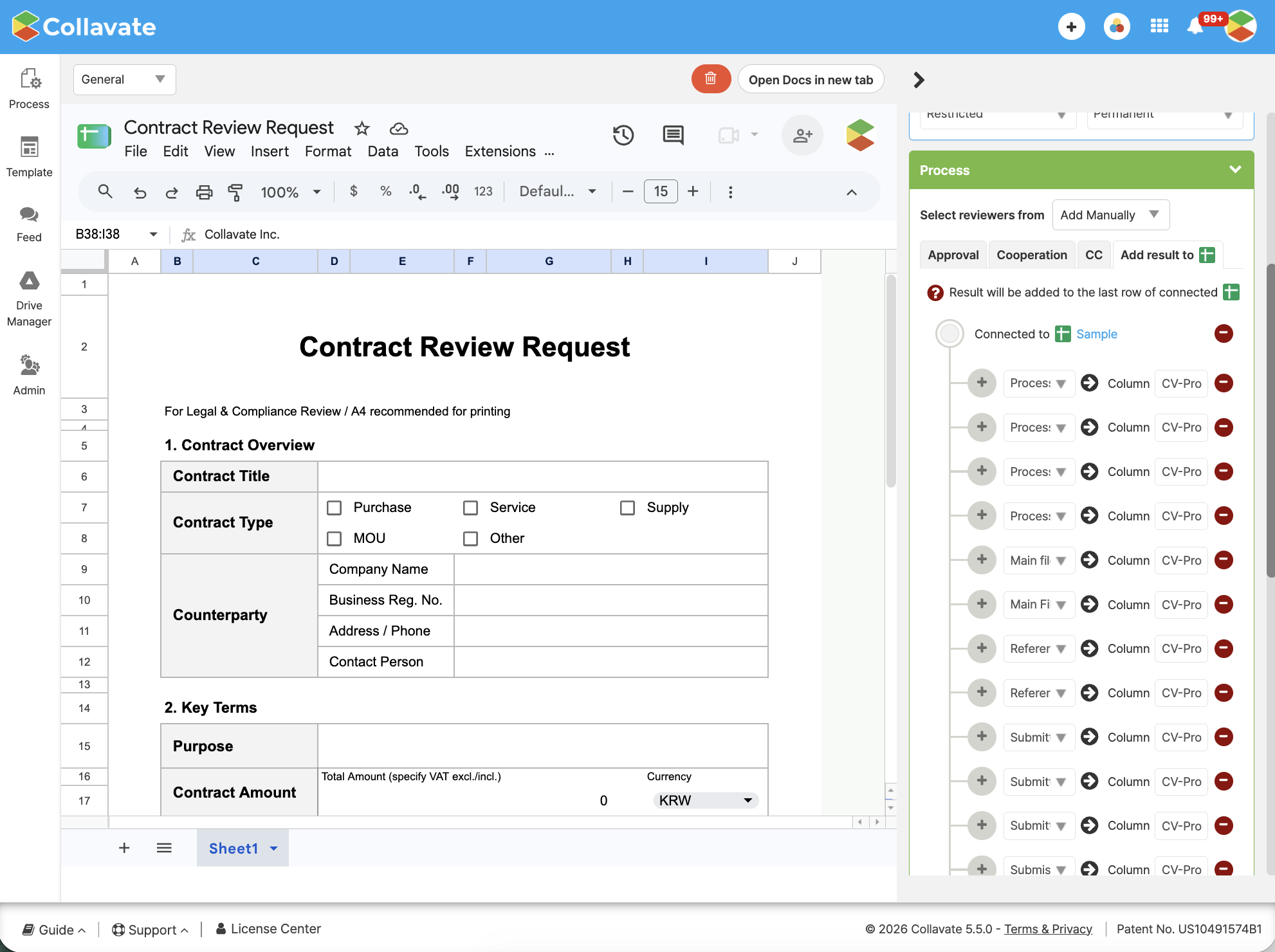
Drag to change the order of items
As your list of items grows, you may want to change their order. Before, you had to delete an item and add it again in the right place. Instead, you can simply drag and drop it with your mouse.
- In the Connected Ledger item list, find the handle with six dots on the left of each row.
- Grab the handle with your mouse and drag the row to where you want it.
- The order numbers update automatically. When you save, the new order is kept.
When you move a row, the item and its column move together as a pair. If you move “Submission date → column C” to the top, the submission date is still recorded in column C, and every other item keeps the column you gave it. You can tidy up the order without worrying that records will end up in the wrong place.
Your records help you make better decisions
The data collected in your Connected Ledger is more than an archive. It shows how your company actually makes decisions: how often certain requests come in, how long decisions usually take, and at which step things tend to slow down.
Records like these are also exactly what AI needs to be useful. The more well-organized records there are, the better AI can find similar past cases, point out recurring patterns and show you the evidence to consider before your next decision. If your records are scattered across email and chat, there is little AI can do to help.
That is why Collavate puts decision history first and builds AI on top of it. The Connected Ledger you set up today keeps growing, and over time it becomes decision data that belongs only to your company.
Get started today
Pick the template you use most often and connect a Connected Ledger to it. Within a few weeks, the records in your sheet will show you at a glance how decisions flow through your team. If you have any questions during setup, please contact the Collavate support team at any time.