
Connecting Collavate MCP in Gemini Enterprise
A guide to connecting Collavate MCP in Gemini Enterprise
You can connect Collavate MCP from the Gemini Enterprise screen in just three clicks. Once connected, you can find and review the approval documents and Decision history stored in Collavate simply by asking Gemini in plain language.
For example, if you type “Summarize the purchase request documents approved last week,” Gemini finds those documents in Collavate and summarizes them for you. Without opening each document, you can see at a glance what decision was made, when, and who it went through.
Before you start
Your company must be using Gemini Enterprise, and your domain must have completed the Collavate MCP sign-up. Collavate MCP is currently offered as a beta to customer domains that have applied, and full use is available on the Enterprise plan.
If you don’t see Collavate MCP in the connector list shown below, ask your company’s Google Workspace administrator to check whether the Collavate MCP connector has been added to Gemini Enterprise.
Step 1: Open the Connectors menu
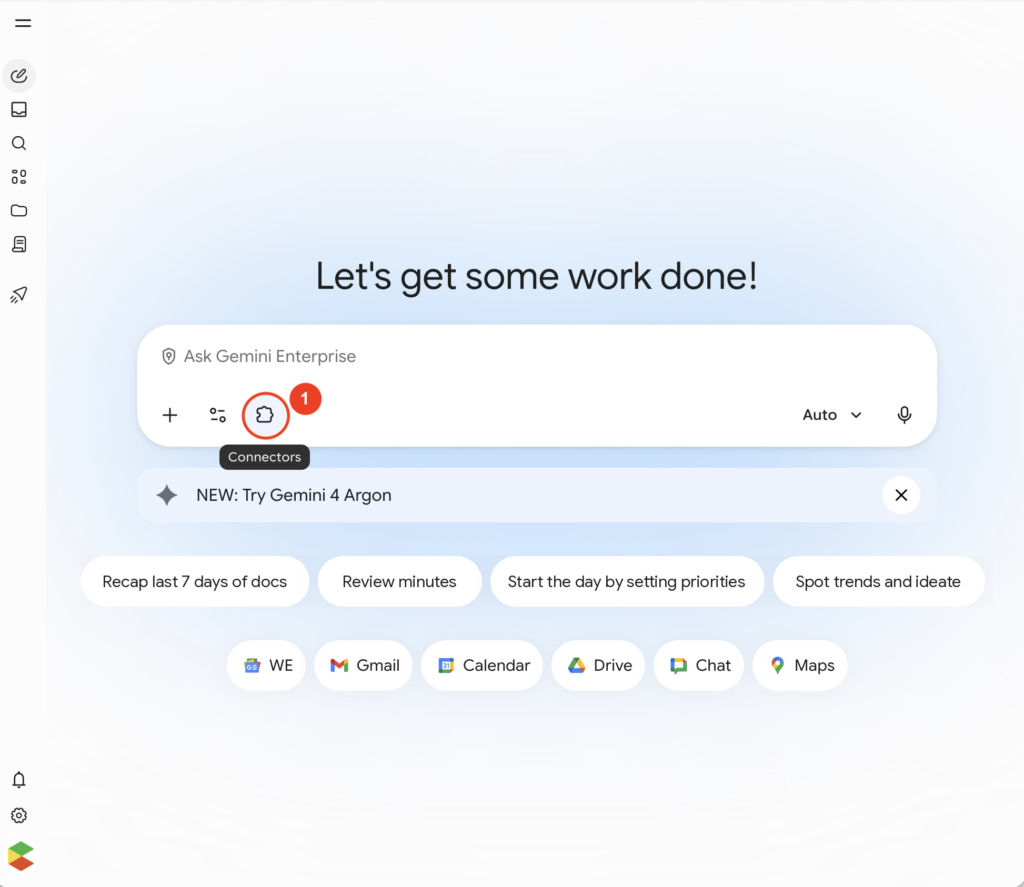
On the Gemini Enterprise home screen, click the puzzle-piece icon below the prompt box. When you hover over it, the label “Connectors” appears.
Step 2: Find the Collavate connector
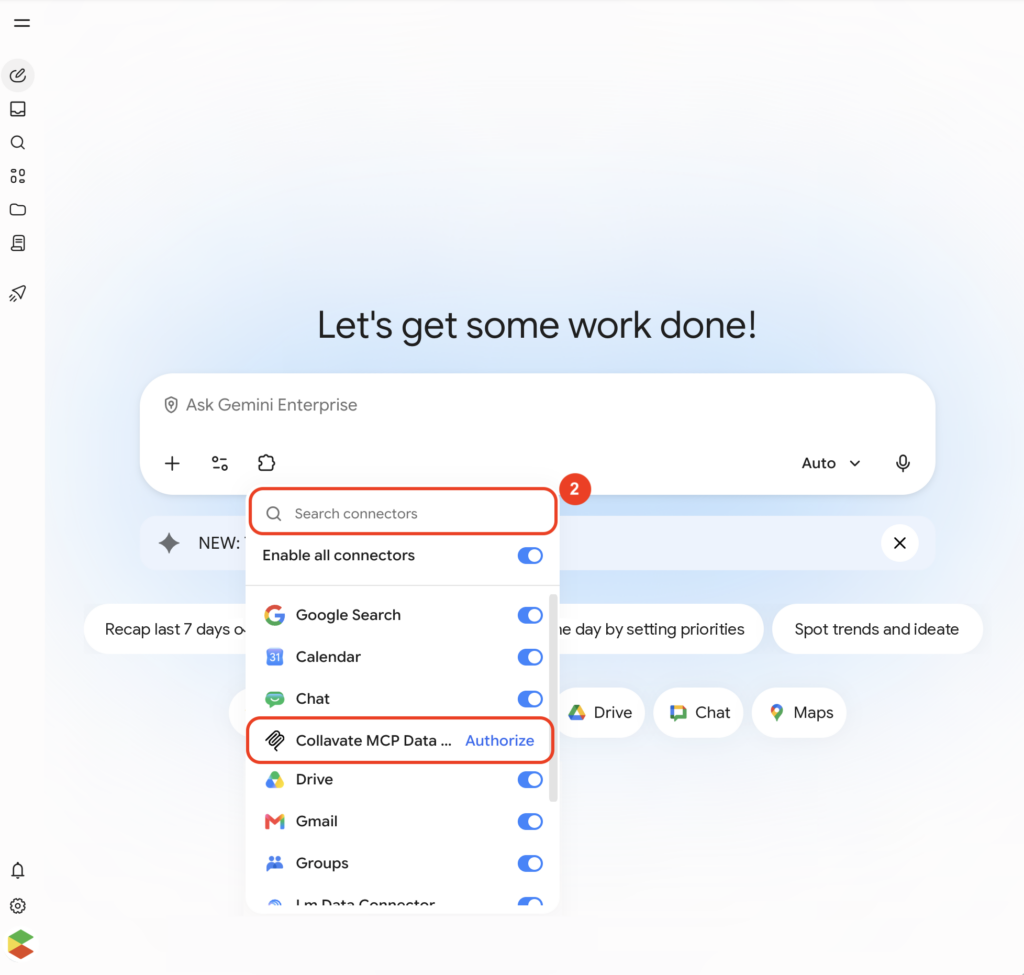
A list of available connectors opens. If the list is long, type Collavate in the “Search connectors” box at the top to find it right away.
Step 3: Click Authorize and grant permissions
In the list, find “Collavate MCP Data” and click the blue Authorize button on the right. When a new window opens, sign in with the company Google account you normally use for Collavate and follow the prompts to grant permissions.
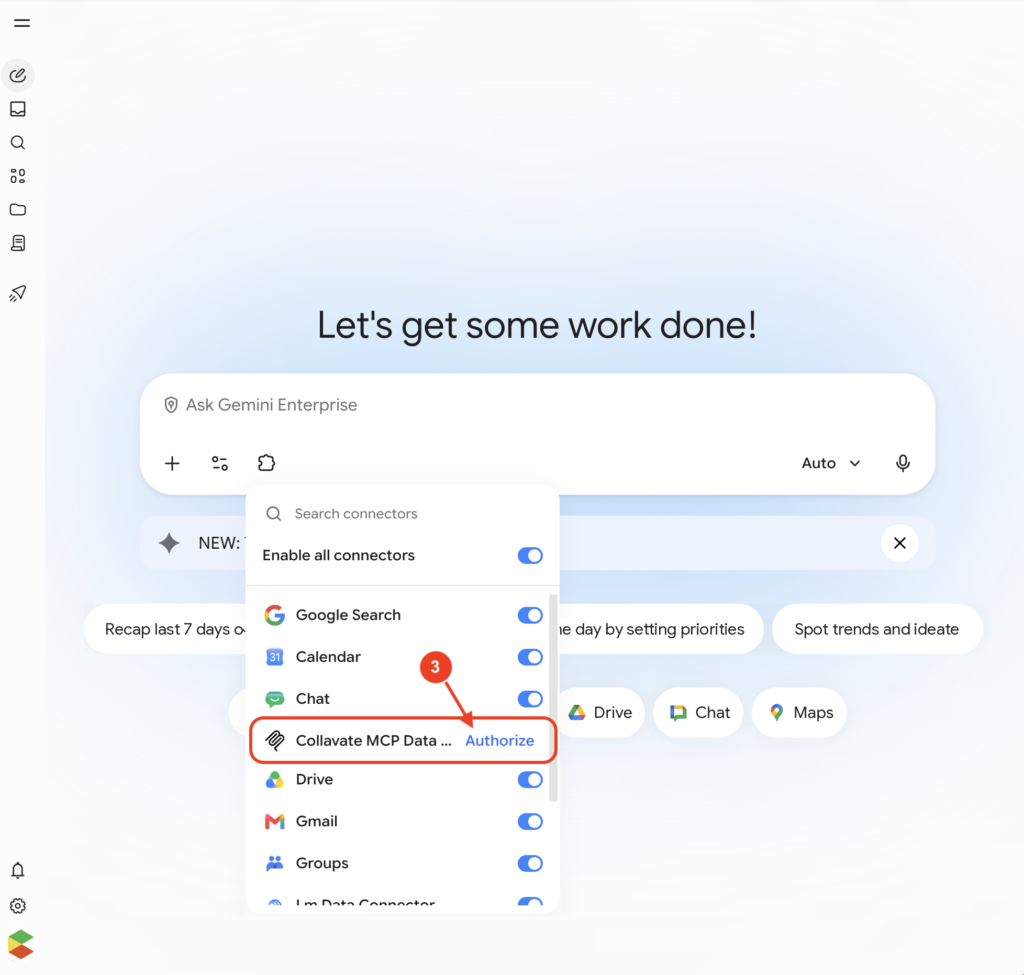
Once permissions are granted, a toggle switch like those of the other connectors appears where the Authorize button was. If the toggle is on (blue), the connection is complete. You only need to do this once.
Try asking
Once connected, just type your question in the prompt box the way you would normally say it. If this is your first time, start with the examples below.
- “Show me a list of the documents I approved this month”
- “Summarize the purchase request documents approved last week”
- “Check whether any contract-related documents are still pending approval”
Gemini finds and answers only within the Collavate permissions of the person who connected it. Documents you can’t access will never appear in its answers, so you can use it with confidence.
Apply for the MCP beta
To use Collavate MCP, you first need to apply for the MCP beta. Please fill out the application form below. Application form